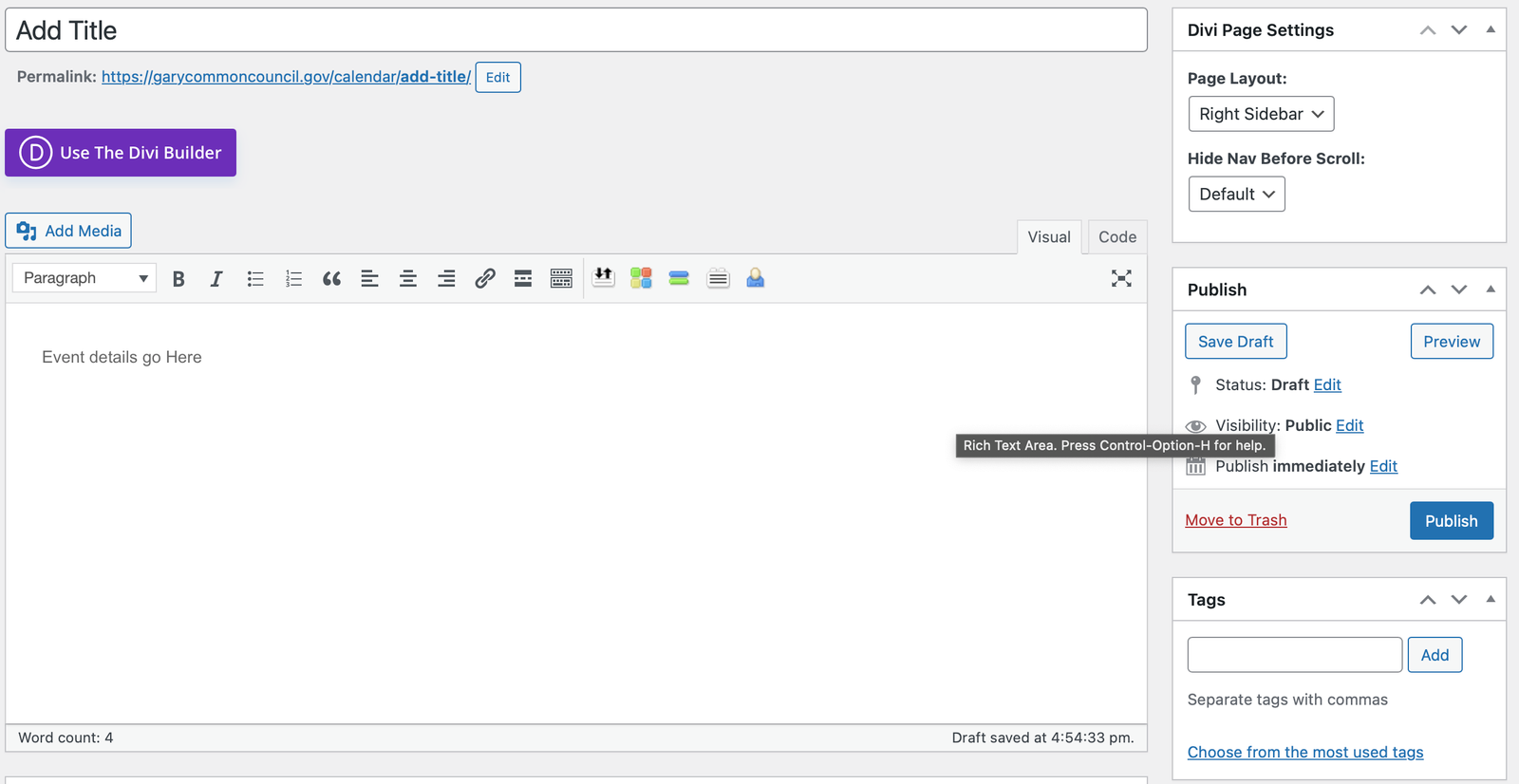
How to Update the Calendar
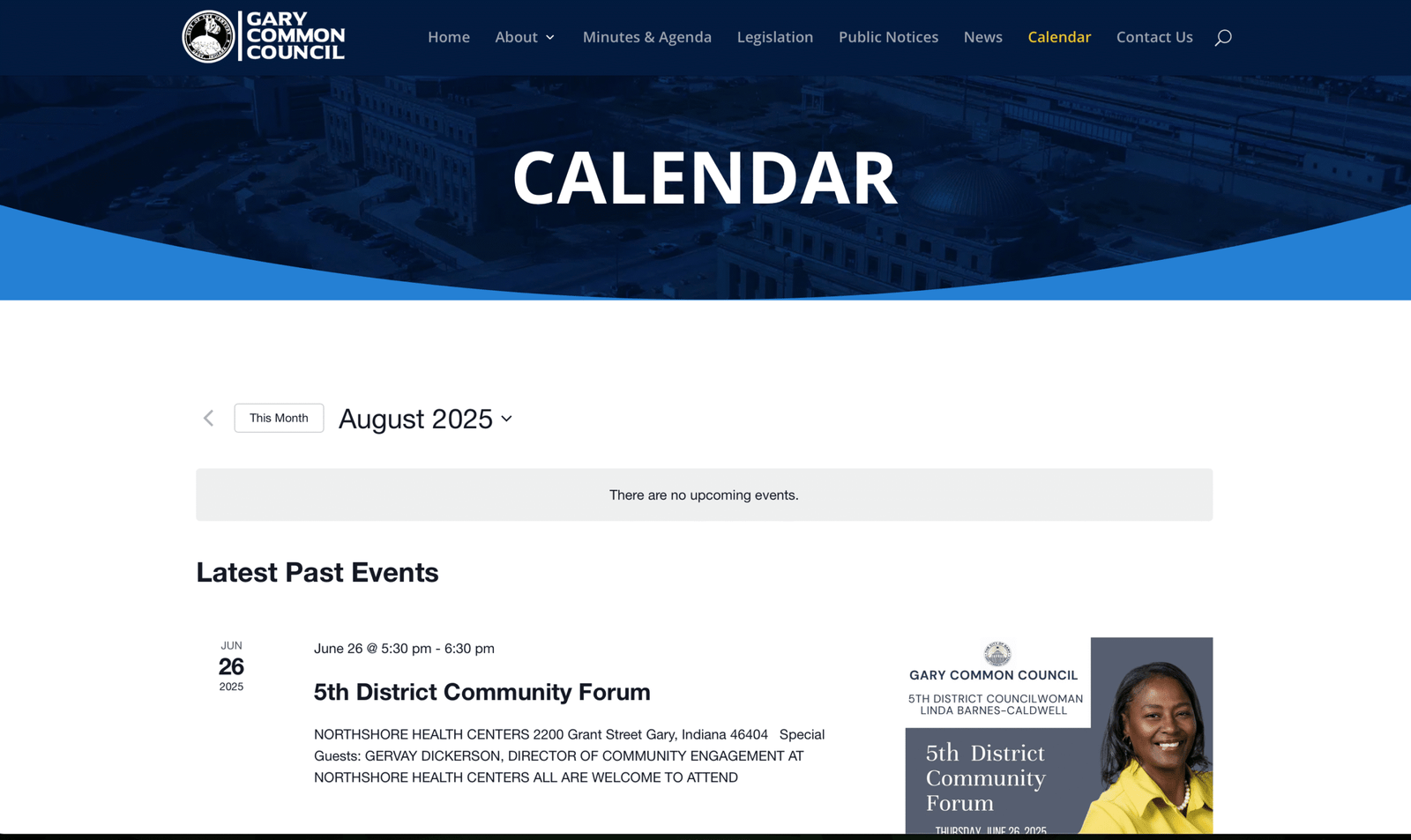
Step 1 - Choose the Events Tab
Click the Events tab highlighted in Blue.
From Here choose “Add New Event” in the list or at the top of the screen in the white header area as shown in the image.
A screen will open with options.
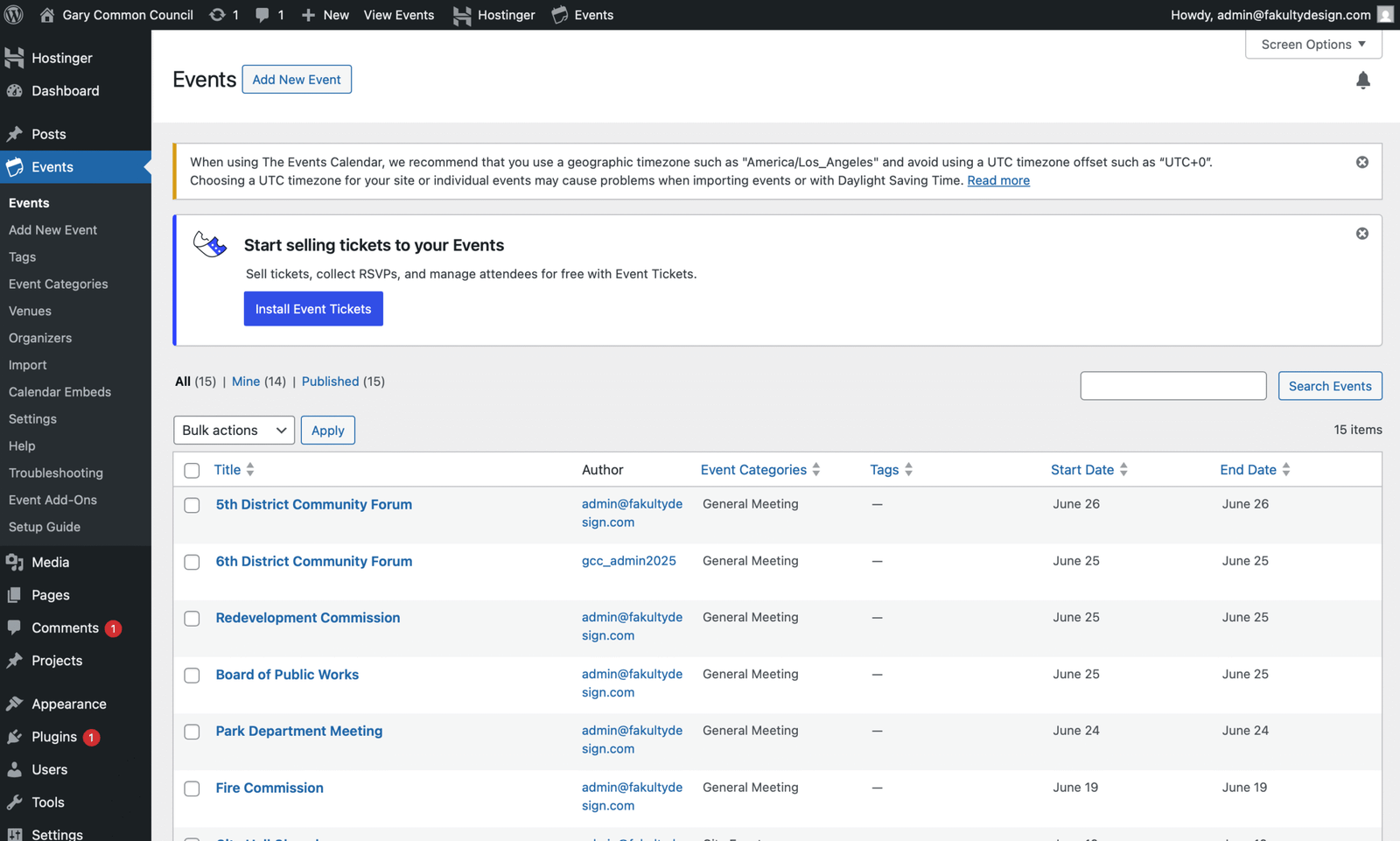
Step 2 - Edit the Event Info
Once your event editor screen opens, Add your title and event description. Feel free to add a flyer or other media by pressing the “Add Media” button located above the editor where your event info.
Scroll down once you have added the event description.
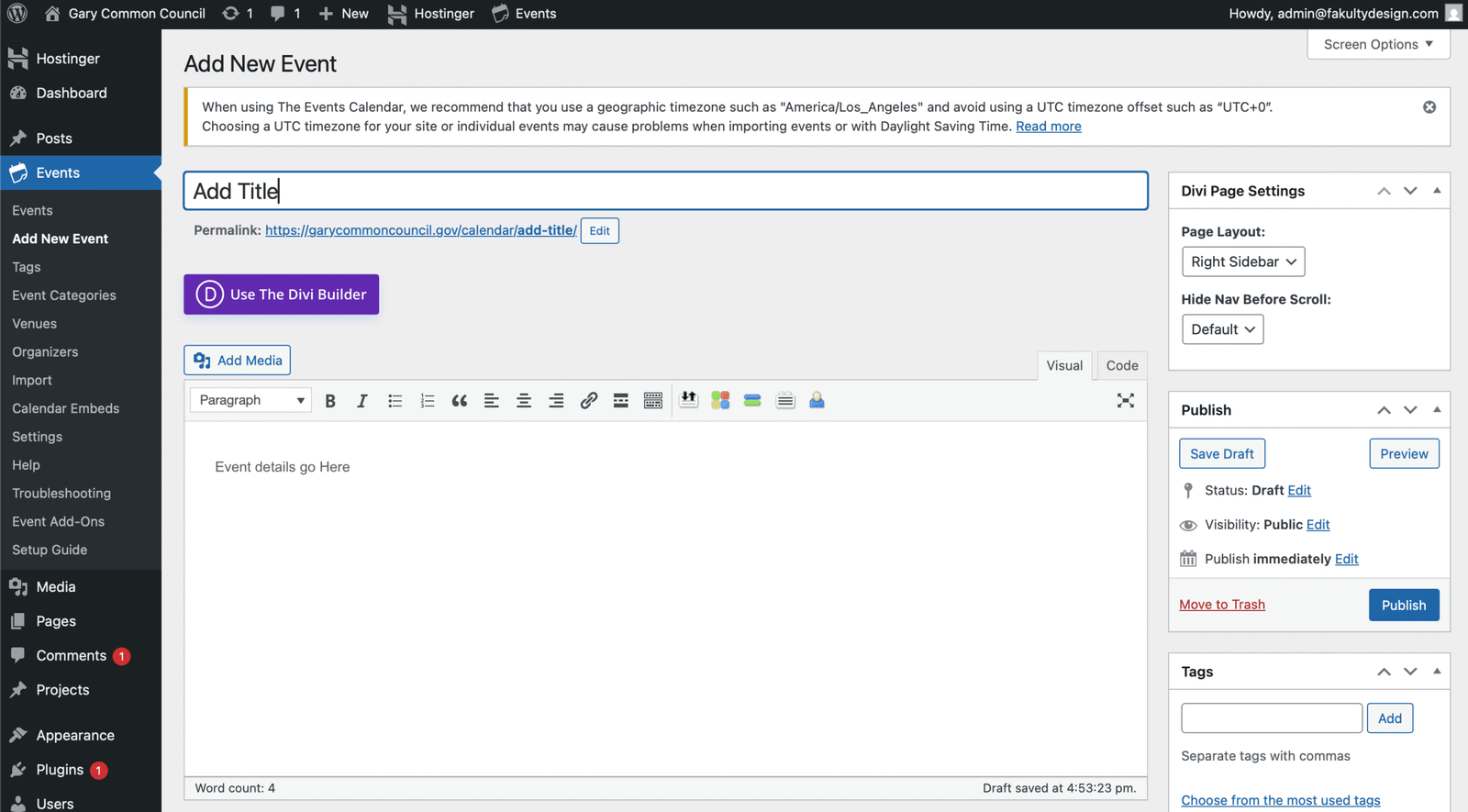
Step 3 - Times, Timezone, & Featured Image
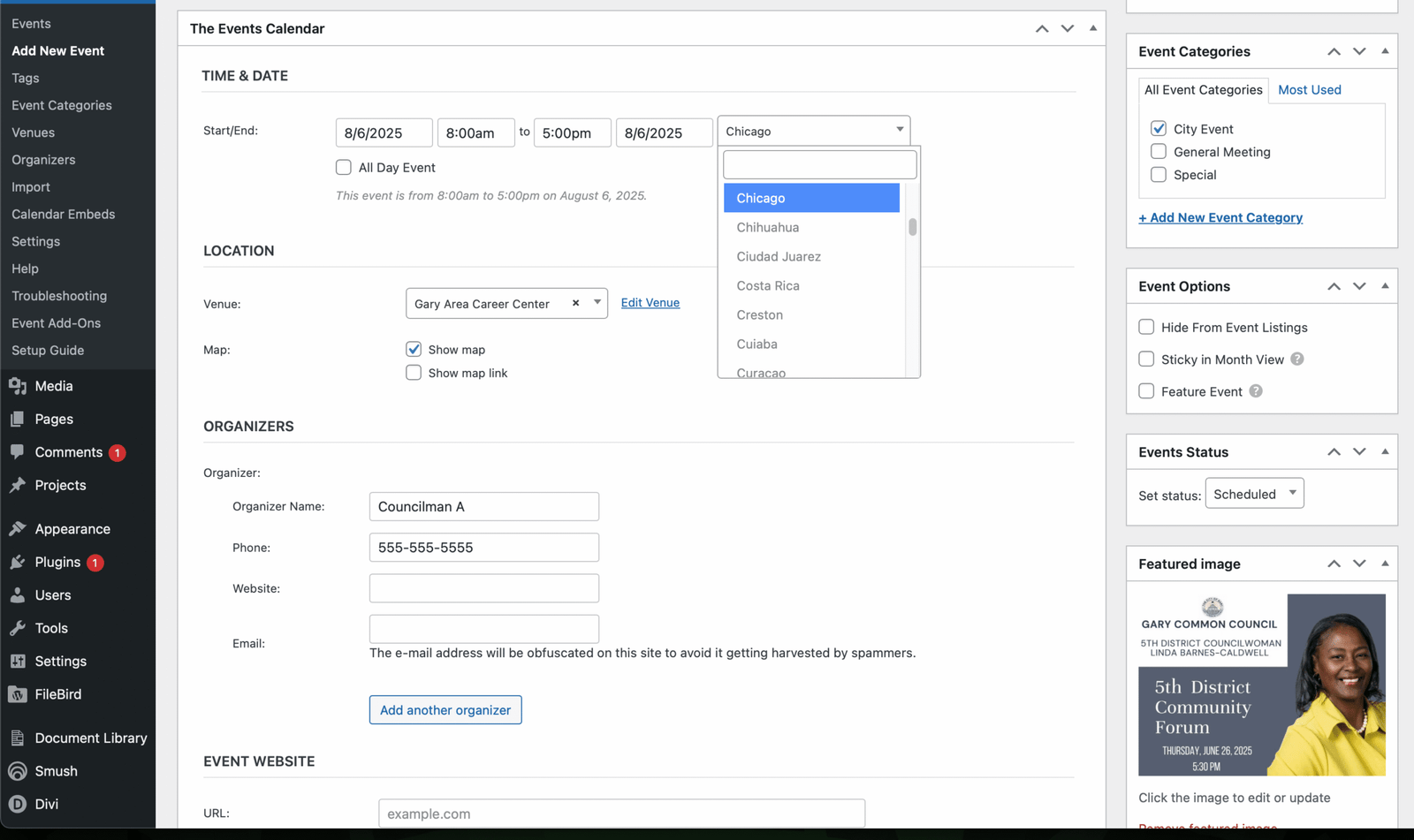
After scrolling down, you can add the time, date, location, and make sure to choose the Timezone. You can type Chicago in the box.
If you want to add the organizer or contact name enter it in the organizers section.
Right Toolbar – choose what category this event belongs.
Featured Image – Choose an image for the event that will be shown on the calendar.
Step 4 - Publish the Event
Once you have added all your details, you can then publish the event on the right toolbar, blue button.
Once published you will see your event on the calendar. Keep in mind You can always go back and make edits.